Reduce eye strain from screen using best lighting tips
"A bright screen in a dark room or a dim screen in a bright room can create significant visual discomfort for anyone working at a desk."
To reduce eye strain from screen use, you must balance your monitor brightness with the surrounding ambient light and maintain a comfortable physical distance from your display.
This guide covers optimizing your workstation, managing lighting, and basic ergonomic adjustments to keep your vision clear. Key takeaways include balancing light levels, adjusting screen settings, and managing your physical workspace to prevent fatigue.
How can I reduce eye strain from screen use?
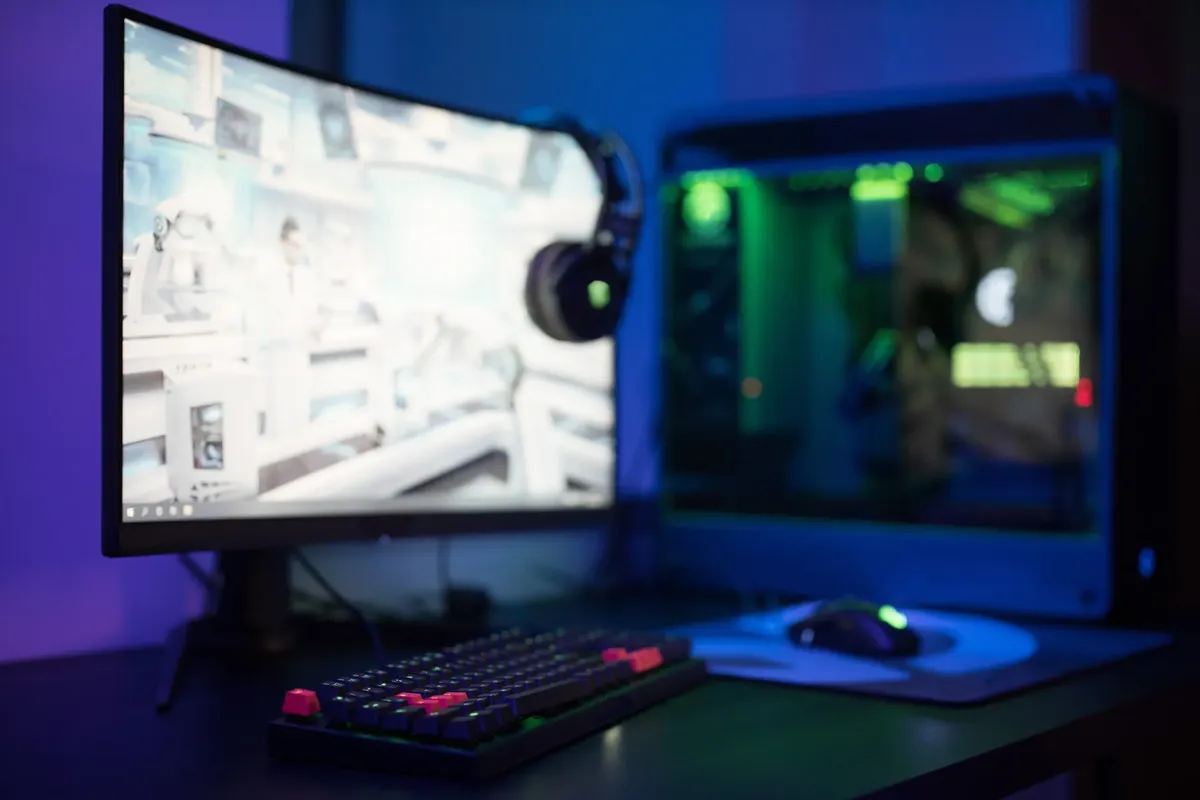
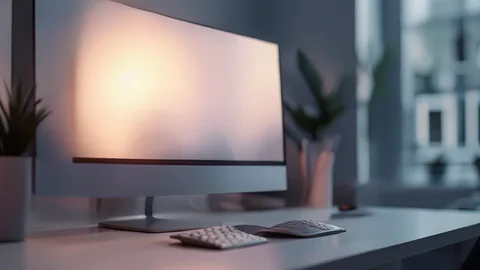
At dusk, I lean back in my chair and squint as I adjust the screen brightness to reduce the harsh glare.
A person sits at a desk, reaches for a lamp, and adjusts the screen brightness to match the afternoon sun. Finding the right balance is essential to prevent the eyes from working too hard to focus.
The primary goal is to ensure that the light coming from your screen does not overpower or fall short of the light in your room. If your monitor is much brighter than the surrounding area, the high contrast can lead to fatigue.
Conversely, a screen that is too dim requires constant squinting to see details clearly.
Effective strategies involve matching the monitor brightness to the ambient light levels of your workspace. You should also consider the position of your desk relative to windows to minimize glare. Using these methods helps maintain a steady visual environment throughout the workday.
What are the best monitor lighting tips?
In my dim office, I reach for the desk lamp to reduce reflections against the screen while I blink against the sudden warmth.
A worker tilts their head to avoid a glare reflecting off the glass surface of a computer monitor. They then move a desk lamp to a different angle to find the perfect setup.
Managing reflections is a critical part of using light in a workspace. Glare from windows or overhead lights hitting the screen can cause significant discomfort and blurriness. To manage this, try to position your monitor so that windows are to the side rather than directly in front or behind you.

You can also use task lighting to illuminate your physical documents without creating a surface reflection on your screen. If you use a desk lamp, aim the light toward your work area rather than directly at the monitor. This approach helps maintain a consistent visual field.
Position your monitor to avoid direct reflections from windows or overhead lights, as glare can cause significant eye fatigue.
How do I implement eye fatigue prevention?
An individual pauses their typing to look away from the screen toward a distant object through a window. They blink several times to refresh their eyes during a short break.
Regularly changing your focus helps your eye muscles relax. When you stare at a single distance for too long, the muscles responsible for focusing can become fatigued. Taking brief, scheduled breaks to look at something far away can alleviate this tension.
During these breaks, remember to blink frequently. Digital work often leads to a reduced blink rate, which can cause dryness. Simply looking away and blinking helps restore moisture to the surface of the eye.
- Take frequent breaks to look away from the screen.
- Blink often to keep your eyes moisturized.
- Adjust your workstation ergonomics to maintain a relaxed posture.
What is the best screen setup for comfort?
A user adjusts their chair height and moves the monitor closer or further away to find the ideal viewing angle. They settle into a position where the screen is at a comfortable eye level.
The physical relationship between your eyes and the screen determines how much strain you experience. Your eyes should naturally rest on the upper third of the screen to avoid looking upward, which can cause dryness. The monitor should be roughly an arm's length away from your face.
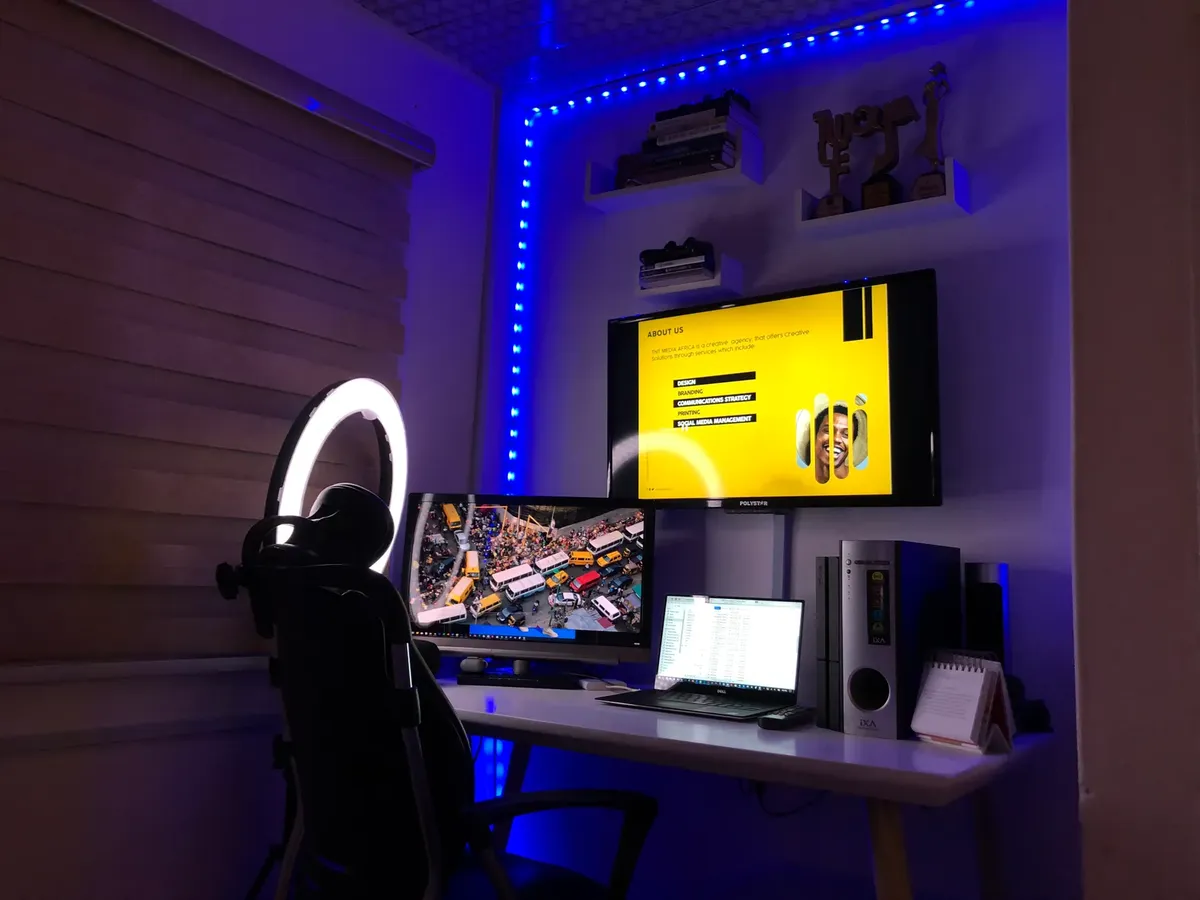
Properly positioning your equipment ensures that you are not constantly leaning forward or tilting your head. A stable setup reduces the need for repetitive micro-adjustments of the eye muscles. Ensuring your monitor is at the correct height and distance is a fundamental step.
Place your monitor at arm's length and ensure the top of the screen is at or slightly below eye level to prevent neck strain.
How can I optimize room lighting for work?
A person walks over to the window blinds and adjusts them to soften the incoming sunlight. They then check if the overhead light is casting too much shadow on their keyboard.
The light in your room should be even and sufficient to see your workspace clearly. Avoid using very dim lighting while working on a bright monitor, as this creates a harsh contrast. If you have adjustable lighting, try to create a soft, diffused environment.
If your room is too bright, use blinds or shades to control the intensity of natural light. If it is too dark, add a well-placed lamp to balance the environment. A well-lit room makes it easier to transition between digital and physical tasks.
Use ambient lighting that is roughly equal to your screen brightness to prevent the harsh contrast that leads to eye strain.
How to adjust monitor brightness settings and proper monitor distance guide
A professional sits down to start their shift, first checking the screen's brightness and then measuring the distance with their arm. They ensure the setup is ready for a long period of focus.
To maintain a healthy workspace, follow these three steps:

- Match your monitor brightness to the ambient light in your room so the screen does not look like a light source in a dark cave or a dim patch in a bright room. 2. Position the screen at an arm's length distance to ensure the text is legible without leaning forward. 3. Set the monitor height so the top of the screen is at or slightly below eye level to prevent neck strain and eye fatigue.
Always perform a final check by looking at your workspace to see if any bright spots or dark shadows are causing you to squint. I found that checking the screen brightness every time the sun moved throughout the day made a significant difference in my comfort.
A limitation of these methods is that they may not account for individual differences in vision or pre-existing eye conditions that require professional medical intervention.
Related
- Reduce eye strain 20-20-20 with simple eye rest tips
- What are the limitations of current corneal treatments?
What happens if I ignore these guidelines? Ignoring these guidelines can result in persistent visual discomfort when using a bright screen or a dim screen. High contrast situations force the eye muscles to work excessively, leading to strain. Furthermore, improper setup can cause physical discomfort from poor posture.
When the ambient light drastically differs from the bright screen, the eye struggles to adapt to the rapid shifts in illumination. This constant effort contributes directly to eye fatigue over extended periods of desk work.
Poor lighting management, such as letting glare hit the bright screen, introduces distracting visual noise. This noise forces the visual system to process unwanted light patterns instead of focusing on the task at hand.
How does screen brightness interact with room lighting? The relationship between the bright screen and the surrounding room light dictates the overall visual experience. Matching these two elements prevents the screen from becoming an overly dominant light source or disappearing into shadow.
If the room light is too dim compared to the bright screen, the high contrast forces the eye to strain against the intensity difference. Conversely, if the room light is too bright, the bright screen may appear dull against the powerful ambient illumination.
Maintaining a balanced light level ensures that the visual system receives a consistent input, allowing the eyes to rest more effectively during work sessions.
web.ma.utexas.edu Based on the retained excerpt mentioning Environmental Protection Agency: Environmental Protection Agency Download descriptions of databases or use the Environmental Atlas to view maps showing air quality, land use, or water quality.





Comments 0